> ## Documentation Index
> Fetch the complete documentation index at: https://docs.bastion.com/llms.txt
> Use this file to discover all available pages before exploring further.
# API authentication with Bearer keys
> Obtain a Bastion API key from the dashboard, choose between the sandbox and production environments, and pass the key as a Bearer token in requests.
Authenticate your requests to the Bastion API by obtaining an API key from the Bastion dashboard and passing it in the `Authorization` HTTP header.
## API environments
Bastion provides two environments:
| Environment | Base URL | Dashboard URL |
| ----------- | -------------------------------- | ------------------------------------------------------------------------------ |
| Production | `https://api.prod.bastion.com` | [https://dashboard.prod.bastion.com](https://dashboard.prod.bastion.com) |
| Sandbox | `https://api.sandbox.bastion.io` | [https://dashboard.sandbox.bastion.com](https://dashboard.sandbox.bastion.com) |
## Obtain an API key
Contact our sales team at [sales@bastion.com](mailto:sales@bastion.com) to gain access to the Bastion platform. Our team will review your request and respond with access credentials along with additional instructions and terms of use.
Once you have dashboard access, you can create API keys directly from the Bastion dashboard:
1. Navigate to the **API keys** tab in the left sidebar.
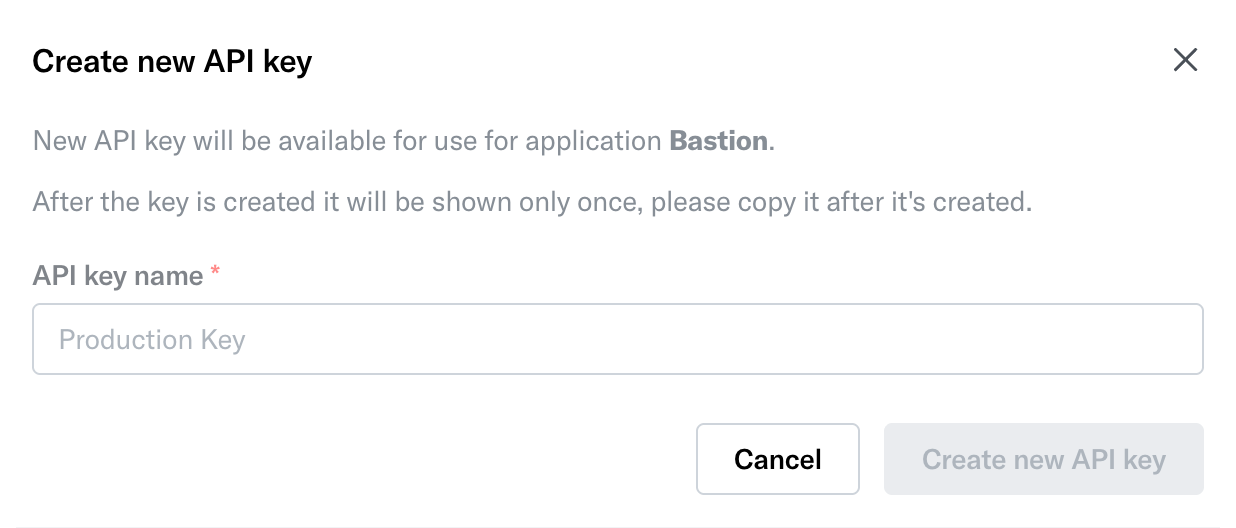
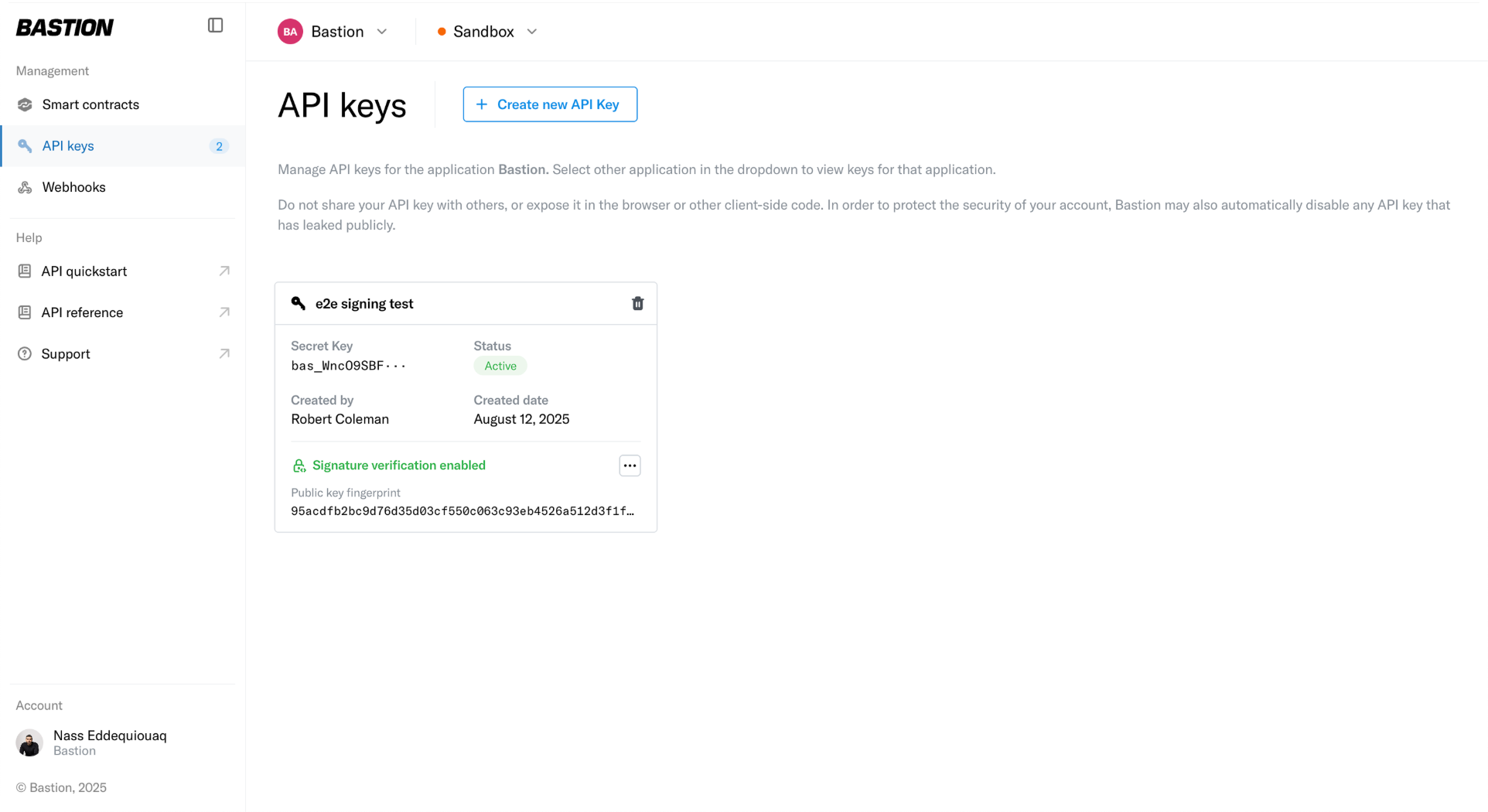 2. Select **Create new API Key** and enter a name for the key.
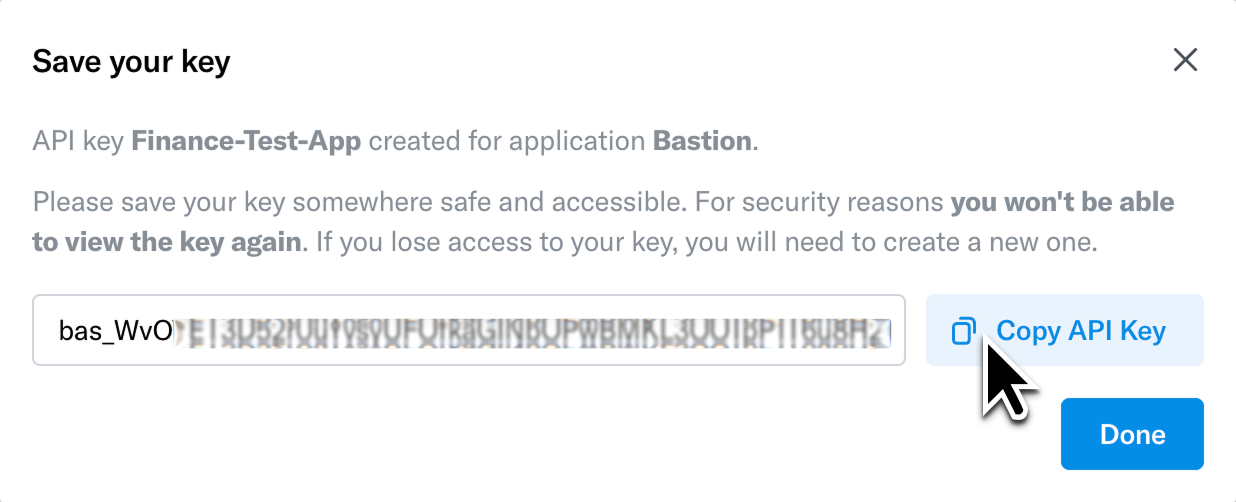
 3. Copy and securely store the generated secret key — it won't be retrievable after this step.
 Your API key is unique to your organization. Do not share it with unauthorized individuals or expose it in client-side code, public repositories, or configuration files.
## Pass the API key in request headers
Once you have obtained your API key, include it in the HTTP request headers for every API call:
1. Set the `Authorization` header in your HTTP requests.
2. Use the `Bearer` scheme followed by a space and your API key:
```text theme={"theme":{"light":"vitesse-light","dark":"vitesse-dark"}}
Authorization: Bearer
```
3. Replace `` with the actual key provided to you.
### Example requests
```bash theme={"theme":{"light":"vitesse-light","dark":"vitesse-dark"}}
curl -H "Authorization: Bearer " \
https://api.sandbox.bastion.io/v2/accounts
```
A successful authenticated request returns a `200` response. If your key is missing or invalid, you'll receive a `401 Unauthorized` response.
## Next steps
* Explore the [Sandbox access](/guides/getting-started/api-access-prerequisites) page for details on the sandbox environment and dashboard
* Browse the [API reference](/v2/api-reference/authentication/overview) to see available endpoints
## Related topics
- [API authentication overview](/guides/security/api-authentication.md)
- [Request signing with JWTs](/v2/api-reference/authentication/request-signing.md)
- [Sandbox vs. production environments](/guides/getting-started/sandbox-vs-production-environments.md)
- [JWT generation example](/v2/api-reference/authentication/jwt-generation-example.md)
- [Security architecture overview](/guides/security/overview.md)
Your API key is unique to your organization. Do not share it with unauthorized individuals or expose it in client-side code, public repositories, or configuration files.
## Pass the API key in request headers
Once you have obtained your API key, include it in the HTTP request headers for every API call:
1. Set the `Authorization` header in your HTTP requests.
2. Use the `Bearer` scheme followed by a space and your API key:
```text theme={"theme":{"light":"vitesse-light","dark":"vitesse-dark"}}
Authorization: Bearer
```
3. Replace `` with the actual key provided to you.
### Example requests
```bash theme={"theme":{"light":"vitesse-light","dark":"vitesse-dark"}}
curl -H "Authorization: Bearer " \
https://api.sandbox.bastion.io/v2/accounts
```
A successful authenticated request returns a `200` response. If your key is missing or invalid, you'll receive a `401 Unauthorized` response.
## Next steps
* Explore the [Sandbox access](/guides/getting-started/api-access-prerequisites) page for details on the sandbox environment and dashboard
* Browse the [API reference](/v2/api-reference/authentication/overview) to see available endpoints
## Related topics
- [API authentication overview](/guides/security/api-authentication.md)
- [Request signing with JWTs](/v2/api-reference/authentication/request-signing.md)
- [Sandbox vs. production environments](/guides/getting-started/sandbox-vs-production-environments.md)
- [JWT generation example](/v2/api-reference/authentication/jwt-generation-example.md)
- [Security architecture overview](/guides/security/overview.md)